Display Diagnosis
Display Diagnosis
The multi-information display unit has a self-diagnostic function to help find problems with the multi-information display unit. To run the self-diagnostic function, do the following:
Service Diag
NOTE:
- Check the vehicle 12 volt battery condition first .
- There may be other self-diagnostic functions that are for factory use only.
1. Turn the vehicle to the ON mode
2. Press the MENU button to display the Vehicle Menu
3. Press and hold the MENU button and then the SOURCE button on the audio remote switch for about 10 seconds. The Service Diag menu screen appears.
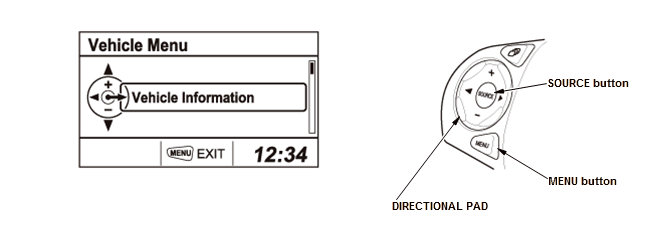
4. Use the directional pad to select the diagnosis, then press the SOURCE button to enter your selection.
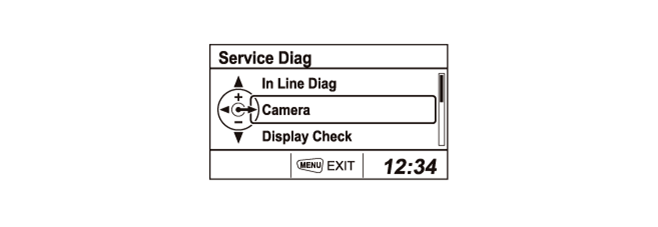
5. To end the display diagnosis, turn the audio system off, press the MENU button, or turn the vehicle to the OFF mode.
In Line Diag (multi-information display unit)
NOTE: If the vehicle left the factory in the factory diagnostic mode, you will see this screen every time you turn the vehicle to the ON mode. You may also see this screen if you recently replaced the multi-information display unit.
When the multi-information display unit is powered up for the first time at the factory or sometimes when a remanufactured multi-information display unit is installed, the factory diagnostic screen (In Line Diag) appears. Normally the factory does the steps necessary to verify proper operation and terminate the factory diagnosis. Until the proper confirmation sequence is done, the screen appears every time the vehicle is started.
Also, the In Line Diag function can be performed from the Service Diag menu.
Select the In Line Diag in the Service Diag menu, then select the Diagnostic Result.
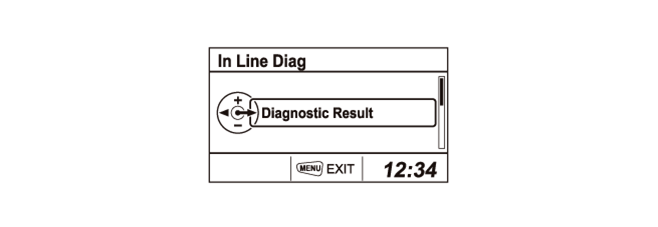
The In Line Diag function runs automatically. When the diagnosis finishes, the icons turn different colors based on their test status (OK or NG).
NOTE: The Result (A) indicates NG until the audio remote switch buttons (the DISPLAY button or the MENU button and the SOURCE button or the directional pad) are pressed.
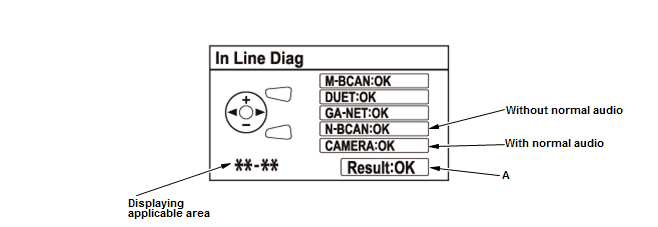
| Icon Colors | Description |
|---|---|
| Green | The system ran a diagnosis and the results are OK. |
| Red | Errors that require replacement of hardware or harness. |
| Yellow | Errors that do not require hardware replacement, such as a missing optional systems (rearview camera). |
| White | The diagnosis is running. The screen functions are locked out while the diagnosis runs. |
After the test is complete, press the SOURCE button to exit.
Camera
This diagnosis is applied to the audio unit (normal audio) only.
This screen adjusts the rearview camera image guide lines. Press the audio unit selector knob to select the rear view mode (wide, normal, top down). If you need to adjust a guide line, select the point you want to adjust using the SOURCE button, and use the directional pad, and you can move the guide line.
The coordinate of the guide line (A) indicates the selected point position on the screen.
If you need to reset the guide line to the factory settings, press and hold the MENU button for more than 2 seconds.
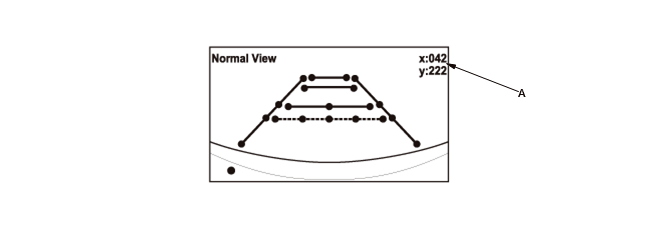
After the setting is complete, press the MENU button to exit.
Display Check
These diagnostic screens allow you to troubleshoot the display unit. Select the item you want to troubleshoot, and follow the diagnostic instructions.
- Color Bar
- Black
- White
- Red
- Green
- Blue
- Gray Bar
- Point
Color Bar
This screen shows the colors being used for the multi-information display unit. This is for factory use only.
The colors should appear in the following order: White, Yellow, Light Blue, Green, Purple, Red, Blue, Black

Black
This screen checks for pixels that may be stuck on. The entire display must be black. If pixels are stuck on, replace the multi-information display unit .

White
This screen checks for pixels that may be dead (off). The entire display must be white. If there are dead pixels, replace the multi-information display unit .

Red, Green, Blue
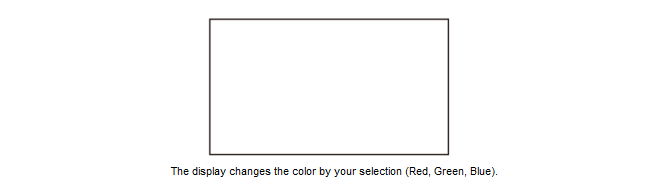
These screens checks that the multi-information display unit is displaying red, green, and blue colors properly. If any of the colors are missing, replace the multi-information display unit .
Gray Bar
This screen checks problems with contrast. You should be able to see the changes from bar to bar across the scale. It is normal for the two bars on either side to appear the same. If you cannot see changes from bar to bar, replace the multi-information display unit .

Point
This screen is for factory use only.

Product Info
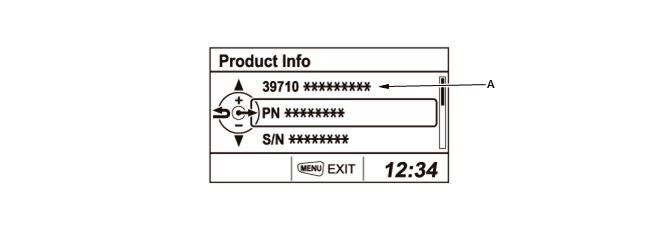
This screen displays the parts number (A), the product number (PN), and the serial number (S/N) about the multi-information display unit. This is for factory use only.
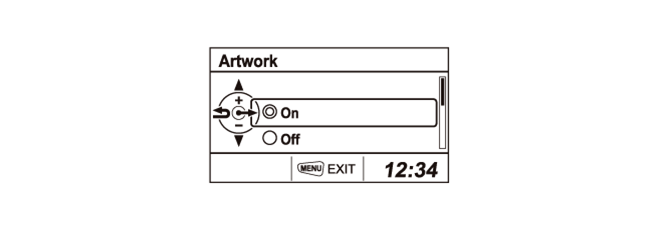
Artwork
This screen allows you to select the iPod album art function On or Off. Refer to the Owner's Manual for more information about the album art function.
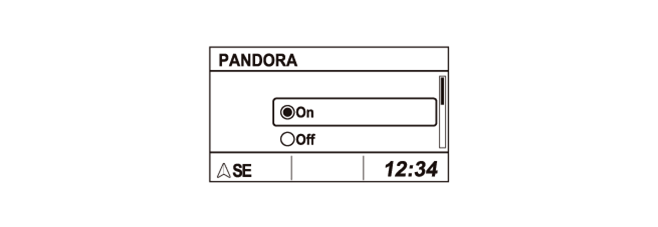
PANDORA
This screen allows you to select the PANDORA function On or Off. Refer to the Owner's Manual for more information about the PANDORA function.