Pairing a Cell Phone (with display audio)
Pairing a Cell Phone (with display audio)
1. Make sure the cell phone you are pairing is on and in its discovery mode
2. Turn the vehicle to the ACCESSORY mode, and select OK on the disclaimer screen
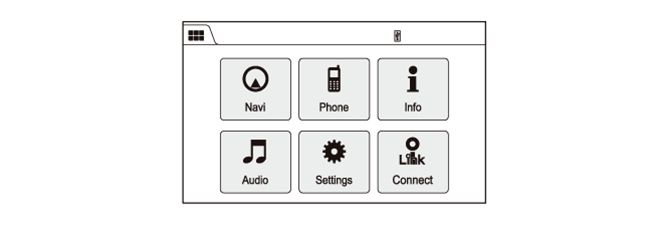
3. Press the HOME button then select the Phone icon from the HOME screen.
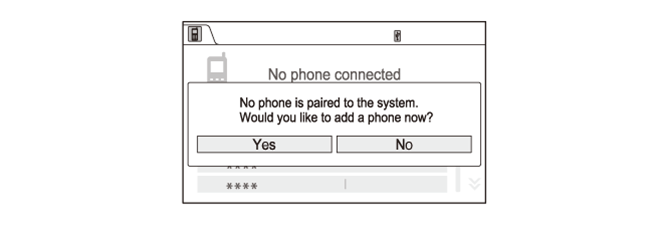
4. A cell phone connection confirmation screen appears on the display. Select Yes to add a new cell phone.
5. Select the your Bluetooth Device from the device list. If the device name is not found in the list, select Refresh to recheck the Bluetooth cell phone.
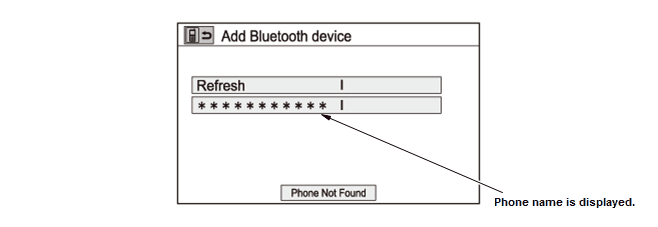
6. If the HFL does not find the cell phone, select the Phone Not Found icon. When the 4-digit PIN appears on the display, enter the PIN into the cell phone.
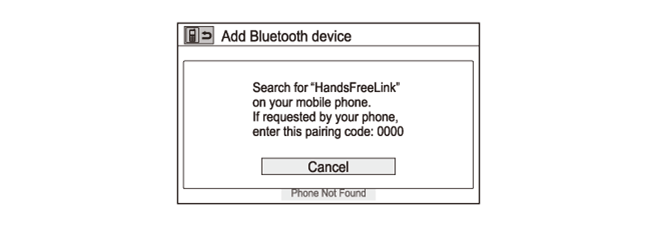
7. Once the cell phone is discovered by the HFL, Confirm the connection on the cell phone.
NOTE: The confirmation screen may vary by the cell phone. Depending on the Bluetooth version of cell phone, it may be necessary to operate the cell phone.
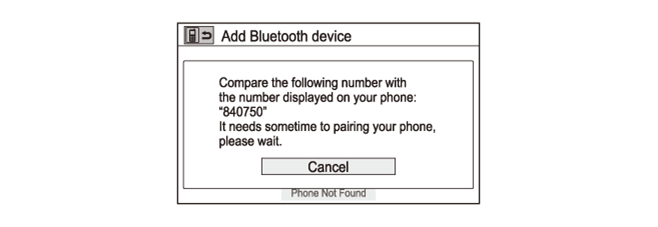
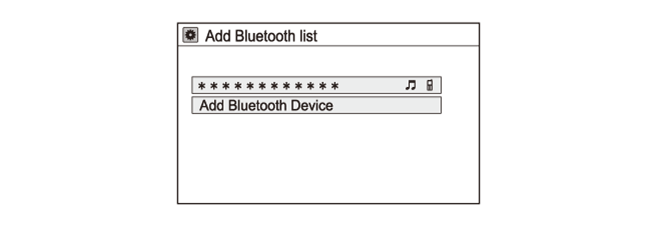
8. Once the cell phone is successfully paired, the screen displays (phone name) PHONE has been added.
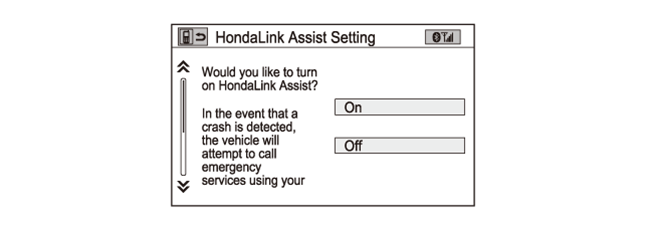
9. If the HondaLink confirmation screen appears on the display, select the Turn On HondaLink Assist icon to confirm the HondaLink Assist Setting screen. In some cases, the confirmation screen may not appear. If it does not, select the Exit icon. If a confirmation screen does appear, go to the next step.
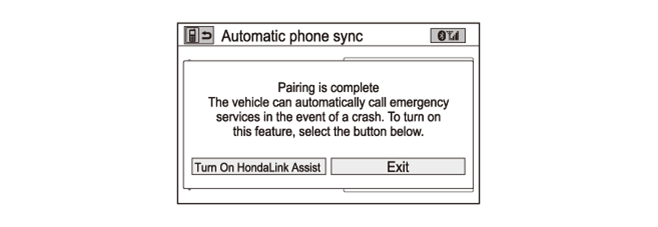
10. If the HondaLink Assist Settings screen appears on the display, select On or Off, then press the BACK button to exit the screen.
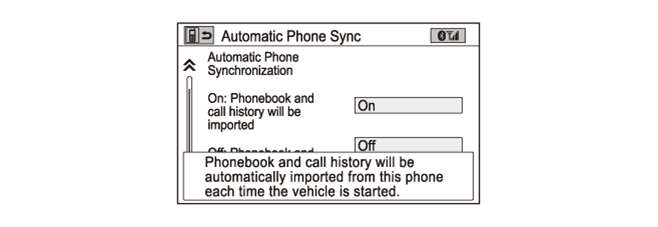
11. If the Automatic Phone Sync screen appears on the display, select On to import a Phonebook and call history information.
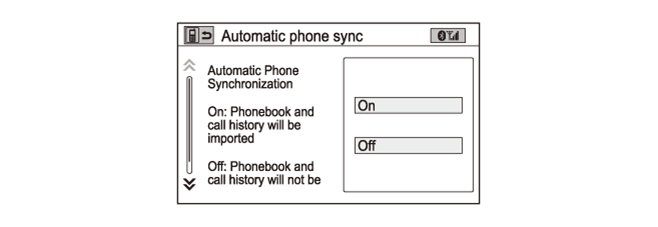
12. The Phonebook and call history information is automatically imported from your cell phone.