Torque Converter Clutch Shudder Snap Shot Evaluation Job Aid (AJA46598)
Reference number: AJA46598
TORQUE CONVERTER CLUTCH SHUDDER SNAP SHOT EVALUATION JOB AID
TECHNICAL SERVICE BULLETIN
| HONDA: | All models with A/T |
REVISION SUMMARY
- Under HDS SET-UP, the icon in step 7 was revised.
- Note added under BACKGROUND.
- The layout of BACKGROUND was revised.
- Caution added for step 3 under HDS SET-UP and step 4 under I-HDS SET-UP.
AFFECTED VEHICLES
All models with A/T
BACKGROUND
If you suspect a torque converter shutter/vibration, a test-drive snap shot may help isolate the source of the issue.
Follow the instructions for the HDS or i-HDS below to capture and evaluate the snapshot for torque converter shudder and current software in the PCM.
- If the data shows RPM fluctuations similar to the examples of a torque converter shudder, replacement of the torque converter, a software update, and/or transmission fluid replacement may be necessary; refer to the applicable service bulletin repair procedure.
- If the snapshot does not compare with the sample snapshots of the faulty torque converter and look similar to the snapshots of known good torque converters, the torque converter is not the source of the vibration; continue with normal troubleshooting.
HDS SET-UP
Setting up the snapshot with the HDS:
- Select Snapshot from the A/T mode menu.
- Select manual trigger, 30 seconds, with the trigger point in the middle.
- Test drive the vehicle and press the Camera icon when you feel the vibration.NOTE: AHM recommends having 2 people in the vehicle while recording any data on the HDS/i-HDS during a test drive; one person to drive the vehicle and an assistant to record any data on the HDS/i-HDS.
Tip: To duplicate, maintain a steady throttle, and as soon as the shudder is felt, hit the Camera icon.
- Enter standalone mode. Click on the open folder icon, and select your snapshot.
- Click the configuration icon and select the following parameters in the Line column:
- Engine Speed
- Input Shaft (Mainshaft) Speed (rpm)
- Output Shaft (CounterShaft) Speed (rpm)
- TP Sensor 1
- Shift Control
- Click the line graph icon.
- Click the graph configuration icon and adjust the Max scale to 3000 RPM for Engine Speed, Input Shaft (Mainshaft) Speed (rpm) Output Shaft (Countershaft) Speed (rpm).
- Click OK.
Evaluating the snapshot with the HDS:
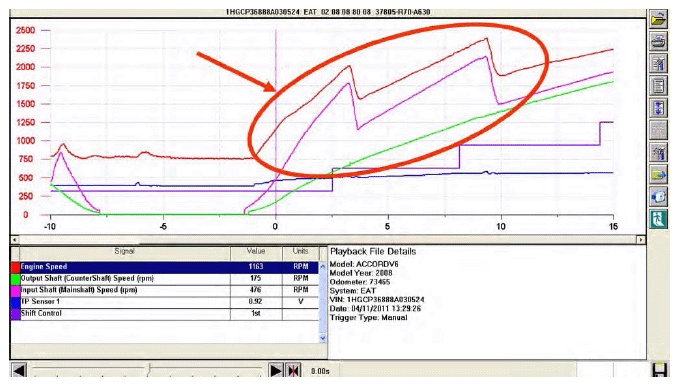
To determine if the vibration you're feeling in the vehicle is being caused by the torque converter, examine the relationship between Engine Speed and Transmission Input (Main) and Output (Counter) Shaft Speed.
In a vehicle with a known good torque converter, Engine Speed, Input Shaft and Output Shaft speeds will all be smooth.
See the example below:
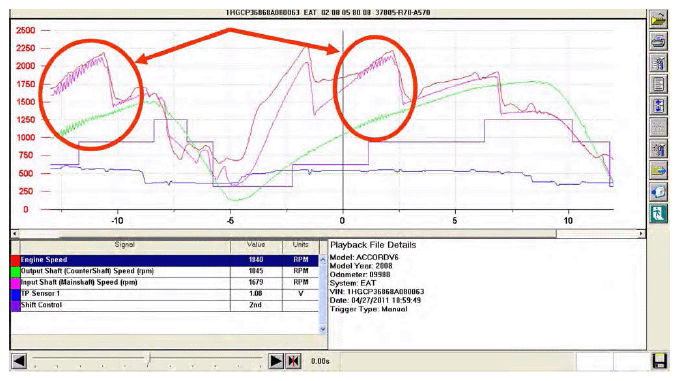
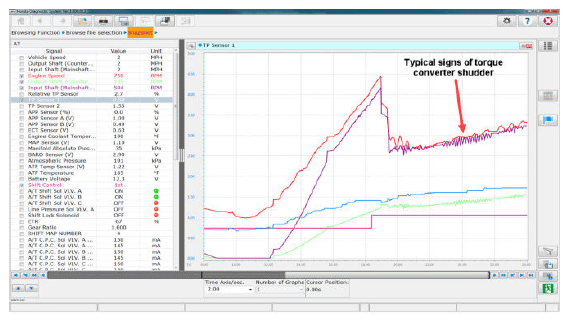
If you are dealing with a vibration caused by a faulty torque converter, you will see oscillations in the Input and Output shaft when the engine speed is smooth as shown below:
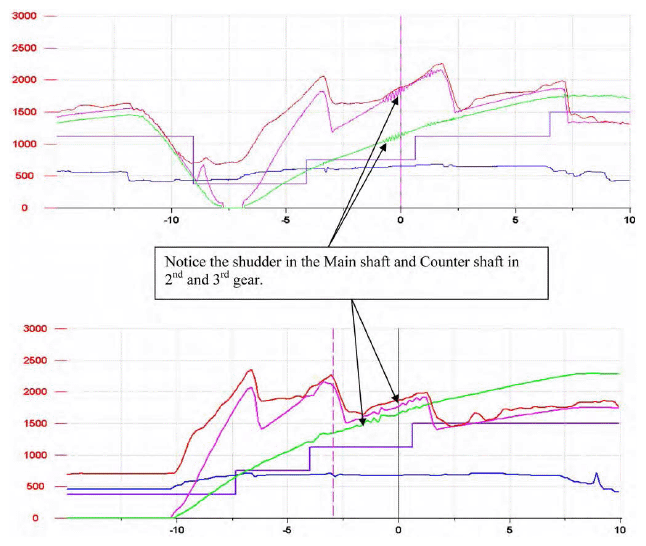
Here are a few more examples of vibration being caused by a faulty torque converter:
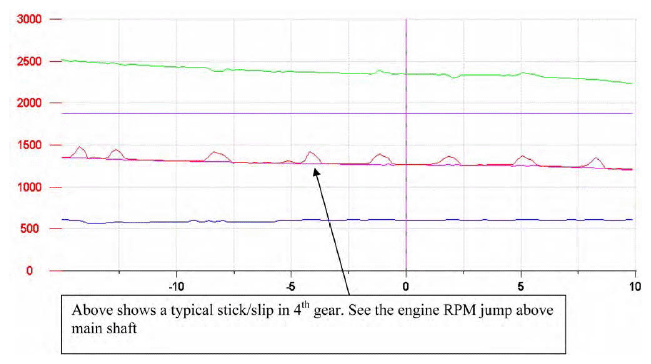
If you're feeling the vibration while under a steady cruise, look for Engine Speed to be briefly jumping above Main Shaft speed. This would indicate that the torque converter is experiencing a stick/slip condition as shown below:
I-HDS SET-UP
Setting up the snapshot with the i-HDS:
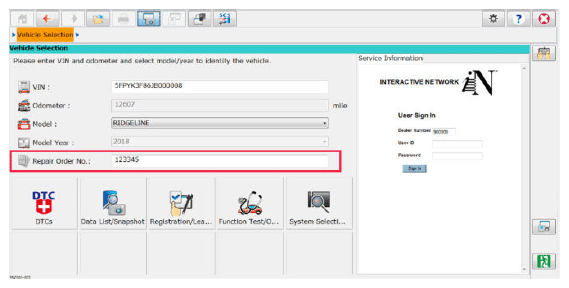
- Connect the i-HDS to the vehicle, and input the Repair Order Number.
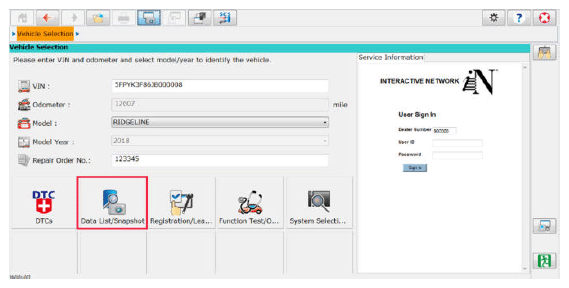
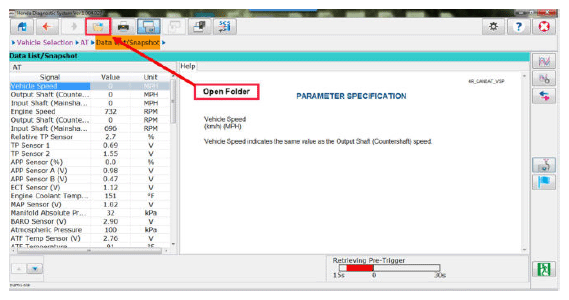
- Select Data List/Snapshot
.
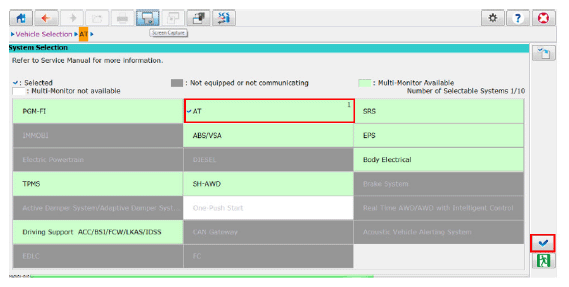
- Select AT
, then select the check mark.
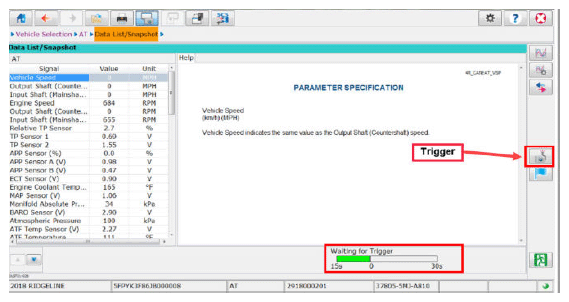
- Wait for the Waiting for Trigger
bar to turn green, then drive the vehicle. When you feel the vibration/shudder, hit select the Trigger icon.NOTE: AHM recommends having 2 people in the vehicle while recording any data on the HDS/i-HDS during a test drive; one person to drive the vehicle and an assistant to record any data on the HDS/i-HDS.
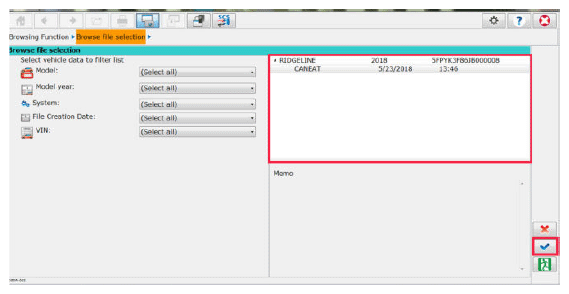
- After parking in a safe location, select the Open Folder icon.
- Select the snapshot file you want to view, then select the check mark.
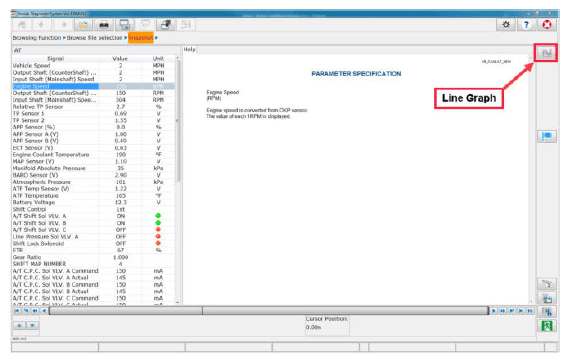
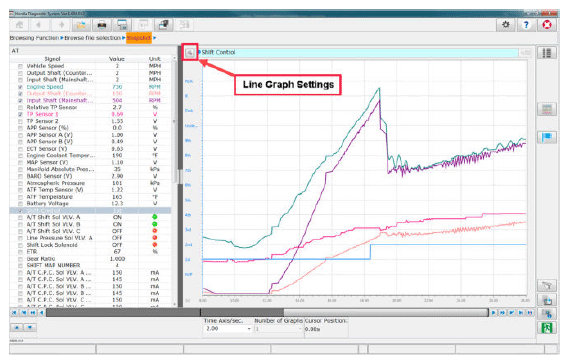
- Select the Line Graph icon.
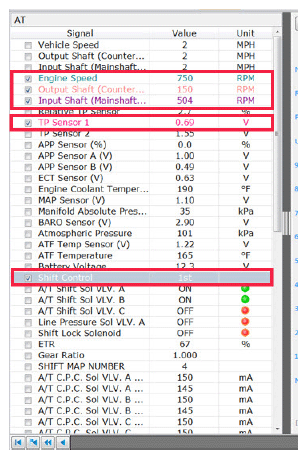
- Select the following signals:
- Engine Speed
- Output Shaft (Counter Shaft) speed (rpm)
- Input Shaft (Main Shaft) speed (rpm)
- TP Sensor 1
- Shift Control
- Select the Line Graph Settings icon.
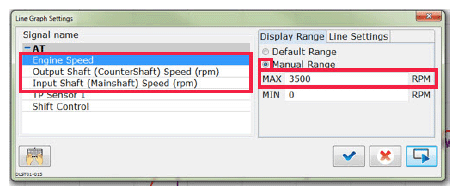
- Change the Display Range
from Default Range
to Manual Range
, and change the MAX Display Range
in the following signals to 3500 RPM:
- Engine Speed
- Output Shaft (Countershaft) Speed (rpm)
- Input Shaft (Mainshaft Speed (rpm)
- Change the Time Axis/sec
. to 2.00.

Evaluating the snapshot with the i-HDS:
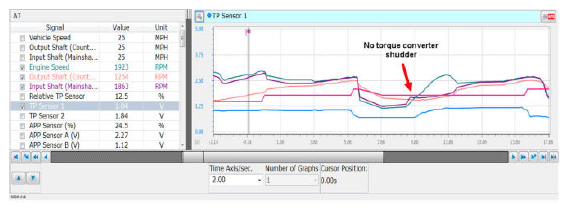
To determine if the vibration you're feeling in the vehicle is being caused by the torque converter, examine the relationship between Engine Speed and Input Shaft (Main Shaft) speed (rpm) and Output Shaft (Counter Shaft) speed (rpm).
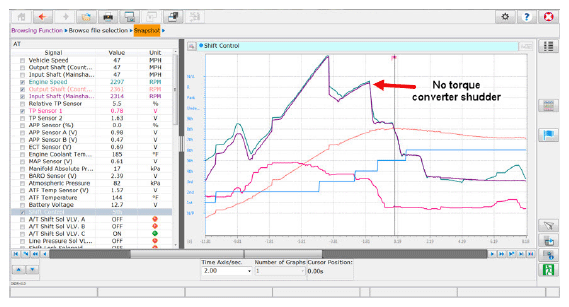
In a vehicle with a known good torque converter, Engine Speed, Input Shaft and Output Shaft speeds will all be smooth.
See the example below:
END