Ran Rap Rag And RSD 2.5 Radio Software Enhancements (08-081-19)
Publication date: 2020-06-24Reference number: 08-081-19
Supersedes refnos: 08-065-20
RAN RAP RAG AND RSD 2.5 RADIO SOFTWARE ENHANCEMENTS
TECHNICAL SERVICE BULLETIN
| CHRYSLER: | 2017-2019 Alfa Romeo Giulia (GA); 2018-2019 Alfa Romeo Stelvio (GU) |
| GROUP: | 08 - Electrical |
OVERVIEW
This bulletin involves inspecting and if required, updating the radio to software level to **MV 090.000.061**
MODELS
| **2017** - 2019 | (GA) | Alfa Romeo Giulia |
| 2018 - 2019 | (GU) | Alfa Romeo Stelvio |
This bulletin applies to GU vehicles built on or after October 30, 2017 (MDH 1030XX) and on or before **July 12, 2019 (MDH 0712XX)** equipped with one of the following radios:
- AM/FM/HD Bluetooth W/Nav 8.8 Radio (Sales Code RAN).
- AM/FM/HD W/Bluetooth 8.8 Radio (Sales Code RAP).
- W/WO Sirius XM Satellite Radio (Sales Code RSD).
- AM/FM With Bluetooth 6.5 Radio (Sales Code RAG).
SYMPTOM/CONDITION
Some customers may experience one or more of the following:
- Radio may reboot while driving.NOTE: **Software update will help correct existing issue.**
- Radio stays on if you exit the vehicle during a phone call.
- When the vehicle is remote started the radio will turn on at the previously set volume level.
DIAGNOSIS
Using a Scan Tool (wiTECH) with the appropriate Diagnostic Procedures available in DealerCONNECT/Service Library, verify all related systems are functioning as designed. If Diagnostic Trouble Codes (DTCs) or symptom conditions, other than the ones listed above are present, record the issues on the repair order and repair as necessary before proceeding further with this bulletin.
If the customer describes any of the symptom/condition listed above, perform the Inspection Procedure
INSPECTION PROCEDURE
- Check the ETM software version.
- Start the vehicle and turn on the radio.
- Press the "MENU" button that is next to the Rotary Pad, to activate the main menu.
- Turn and press the Rotary Pad to select and activate "SETTINGS" mode.
- Turn and press the Rotary Pad to access the "SYSTEM" function.
- Turn and press the Rotary Pad to access the "SOFTWARE UPDATE" function.
- Turn and press the Rotary Pad to access the "CURRENT SOFTWARE" function.
- What is the ETM software version?
- MV-002.009.059 or lower, this is an early built 2.0 radio. This software will not download to the radio. Check for other applicable published service bulletin for detailed repair procedures and labor times regarding updating the radio.
- MV-072.001.002 - **085.000.046**, update the ETM and map. Proceed to Step 1 of the repair procedure.
- **MV 085.000.046**, update the ETM only. Proceed to Step 1 of the repair procedure.
- **MV 090.000.061**, ETM has the latest available software. Normal diagnostic should be performed.
This applies to GU vehicles built on or after October 30, 2017 (MDH 1030XX) and on or before April 12, 2018 (MDH 0412XX).
After the ETM software has been update to **MV 090.000.06**, (A85), all of the modules listed below MUST be updated (Refer to all applicable published service bulletins for detailed repair procedures and labor times regarding updating the modules). Failure to update all of these modules may result in vehicle malfunctions.
- Body Control Module (BCM)
- Amplifier (AMP)
- Antilock Brake System (ABS)
- Instrument Panel Cluster (IPC)
- Park Assist Module (PAM)
- Left Blind Spot Sensor (LBSS)/Right Blind Spot Sensor (RBSS)
REPAIR PROCEDURE
- Have the a USB flash drives been created?
- YES>>> Proceed to Step 5 of the Repair Procedure.
- NO >>> Proceed to Step 2 .
NOTE: If you cannot download the software, make sure you have proper security access. If not, have the Service Manager or Shop Foreman download the software update. - Go to DealerCONNECT> Service> UCONNECT Command Center> Uconnect> Dealer software downloads, to download the files.
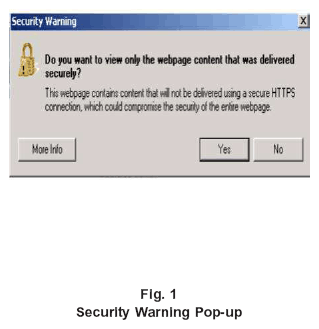
- If a security message appears "Do you want to view only the web page content that was delivered securely?" (Fig. 1
), press "No" to continue.NOTE: The software acquisition requires the deletion of all the files on the USB flash drive before copying the contents of the folder necessary for the update. Copy only the files contained in the folder onto the flash drives, NOT the folder itself.
- To download the software files to USB flash drives, follow the on-screen instructions and perform the following:
- Acquire a blank USB flash drive with at least 16GB.
- A blank USB flash drive will be needed for each software update (one for each software update). Additional updates can not be on the same USB flash drive.
- Once the file is saved to the USB flash drive, it is recommended to label the USB flash drive with the bulletin number.
- The USB flash drives must be formatted as New Technology File System (NTFS) structure.
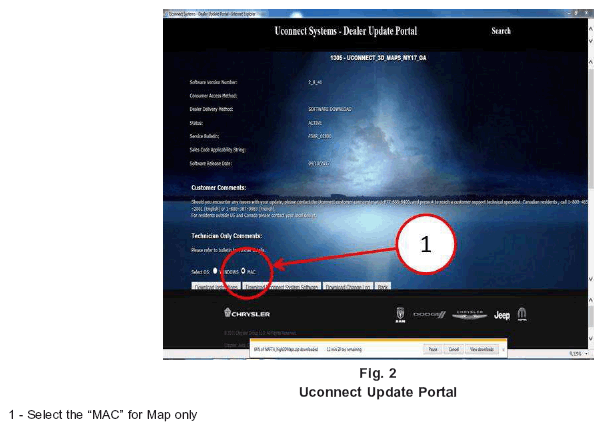
- Download the software update files to your local PC's desktop. Make sure to select the "MAC" for 3D Navigation downloads only (Fig. 2 ).
- Check that there is nothing inserted (USB flash drive or other devices) in the vehicle's USB ports. If there is, they must be removed before starting the update procedure.NOTE: Start the engine and leave it running in a secure location for the duration of the update.
- Turn on the radio with a long press of the ON/OFF control if it does not turn on automatically.NOTE: The technician should record and reprogram the radio presets and user settings that may be reset with the radio update.
- Press the "MENU" button to activate the main menu.
- Turn and press the Rotary Pad to select and activate "SETTINGS" mode.
- Turn and press the Rotary Pad to access the "SYSTEM" function.
- Turn and press the Rotary Pad to access the "SOFTWARE UPDATE" function.
- Insert the USB flash drive with the ETM update software into either USB port.
- Turn and press the Rotary Pad to select OK, to start the update.NOTE: Once started, the procedure does not require any intervention by the operator.CAUTION: DO NOT remove the USB flash drive. DO NOT turn off the ignition, leave the engine running.
- When the software update procedure has completed, remove the USB flash drive. The radio will reboot and restart.
- Was the radio software MV-072.001.002 - MV-080.000.047?
MAP UPDATES
The map updates will apply only to version with 3D maps (RAN Sales Code).
- Turn and press the Rotary Pad to access "SETTINGS"> "TIME AND DATE"> "GPS SYNCHRONIZATION"> "OFF" to disable the GPS clock synchronization.
- Turn and press the Rotary Pad to access "SETTINGS"> "TIME AND DATE"> "TIME SETTING" and manually set the time.
- Turn and press the Rotary Pad to access "SETTINGS"> "TIME AND DATE"> "DATE SETTING" and manually set the date.
- Start the vehicle and leave it running - (safely) - for the duration of the update.
- Turn on the radio with a long press of the "ON/OFF" control, if it does not turn on automatically.
- Press the MENU button to activate the main menu.
- Turn and press the Rotary Pad to select and activate "SETTINGS" mode.
- Turn and press the Rotary Pad to access the "SYSTEM" function.
- Turn and press the Rotary Pad to access the "SOFTWARE UPDATE" function.
- Insert the USB flash drive with the Map updates in the port below the center console armrest.
- Turn and press the Rotary Pad to select "OK", to start the update.NOTE: Once started, the procedure does not require any intervention by the operator.
- When the map update procedure has completed, a confirmation message will be shown on the display.
- Remove the USB flash drive.
- Turn and press the Rotary Pad to access "SETTINGS"> "TIME AND DATE"> "GPS SYNCHRONIZATIONS" to enable GPS clock synchronization.
- Clear all DTCs that may have been set in any module due to reprogramming. The wiTECH application will automatically present all DTCs after the flash and allow them to be cleared.NOTE: The following steps are to be performed if the vehicle was built within the dates listed below.
These steps applies to GA vehicles built on or after June 30, 2017 (MDH 0630XX) and on or before April 12, 2018 (MDH 0412XX).
These steps applies to GU vehicles built on or after October 30, 2017 (MDH 1030XX) and on or before April 12, 2018 (MDH 0412XX).
- Verify the BCM is programmed with the latest available software. Refer to all applicable published service bulletins for detailed repair procedures and labor times regarding updating the BCM software.
- Verify the PAM is programmed with the latest available software. Refer to all applicable published service bulletins for detailed repair procedures and labor times regarding updating the PAM software.
- Verify the ABS module is programmed with the latest available software. Refer to all applicable published service bulletins for detailed repair procedures and labor times regarding updating the ABS software.
- Verify the LBSS/RBSS is programmed with the latest available software. Refer to all applicable published service bulletins for detailed repair procedures and labor times regarding updating the LBSS/RBSS software.
- Verify the IPC is programmed with the latest available software. Refer to all applicable published service bulletins for detailed repair procedures and labor times regarding updating the IPC software.
- Verify the AMP is programmed with the latest available software. Refer to all applicable published service bulletins for detailed repair procedures and labor times regarding updating the AMP software.NOTE: The customer should be informed that after the reprogram, the radio will need to have the phones paired to the ETM. The operative details for pairing telephones and settings are shown in the Owner Handbook of the infotainment module.
TIME ALLOWANCE
| Labor Operation No: | Description | Skill Category | Amount |
|---|---|---|---|
| **18-60-02-9B | Check Software Level and Perform Software Update (ETM Only) (0 - Introduction) | 6 - Electrical and Body Systems | 0.2 Hrs. |
| 18-60-02-9A | Radio, Software - Create USB Jump Drive for ETM using Uconnect Website (One Time Only) (0 - Introduction) | 6 - Electrical and Body Systems | 0.3 Hrs. |
| 18-60-02-9C | Check Software Level and Perform Software Update (ETM and Map) (0 - Introduction) | 6 - Electrical and Body Systems | 0.6 Hrs.** |
| 18-60-02-Y3 | Radio, Software - Create USB Jump Drive for 3D Map using Uconnect Website (One Time Only) (0 - Introduction) | 6 - Electrical and Body Systems | 0.8 Hrs. |
The "One Time Only" LOPS are used one time per dealer when downloading the software onto a USB flash drive. The technician can only use the download LOP one time for each of the radios listed.
FAILURE CODE
The dealer must use failure code CC with this Service Bulletin.
- If the customer's concern matches the SYMPTOM/CONDITION identified in the Service Bulletin, failure code CC is to be used.
- When utilizing this failure code, the 3C's (customer's concern, cause and correction) must be provided for processing Service Bulletin flash/reprogramming conditions.
| CC | Customer Concern |